
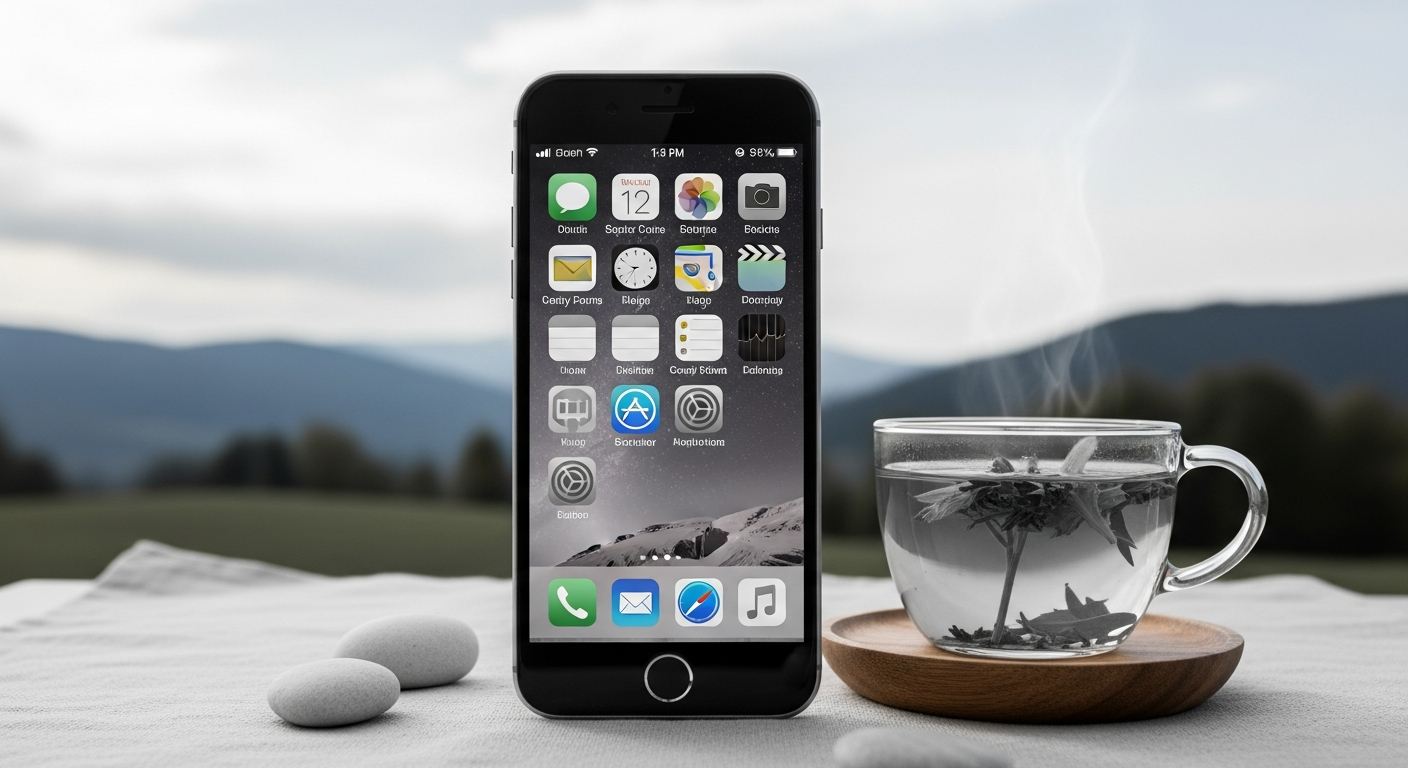
How to Make Your Phone Grayscale to Reduce Usage: The Ultimate Guide to Digital Wellness in 2026
In the modern era, our smartphones have evolved from simple communication tools into high-octane dopamine delivery systems. Every vibrant icon, crimson notification badge, and neon-lit social media feed is meticulously engineered to capture and hold our attention. This phenomenon, often referred to as the “attention economy,” exploits our evolutionary biology to keep us scrolling. However, a growing movement of digital minimalists has discovered a remarkably simple “hack” to break the spell: turning your phone grayscale.
By stripping away the enticing colors that trigger our brain’s reward centers, we transform our devices from addictive toys into functional utilities. In 2026, as we become more aware of the long-term impacts of screen time on our mental health, grayscale mode has emerged as a frontline defense against digital fatigue. This guide will walk you through the psychology of color, provide step-by-step instructions for every major device, and help you reclaim your focus in an increasingly distracting world.
—
The Psychology of Color: Why Your Phone is a Digital Slot Machine
To understand why grayscale works, we first need to understand how tech companies use color to manipulate our behavior. Human beings are biologically programmed to respond to bright colors. In nature, vibrant hues often signify high-value resources, like ripe fruit, or potential dangers, like poisonous insects. Silicon Valley designers leverage this ancient wiring by using “saturated” palettes to make apps feel more urgent and rewarding.
The most notorious example is the notification bubble. There is a reason it is almost universally red. Red is the color of urgency, passion, and danger; it signals to our brain that something requires immediate action. When your phone is in full color, your brain receives a constant stream of micro-rewards (dopamine hits) every time you see a bright icon.
Switching to grayscale removes these neurological “treats.” When Instagram is a series of gray boxes and TikTok is a muted stream of shadows, the “reward” for scrolling diminishes significantly. You aren’t losing the functionality of your phone; you are simply removing the garnish that makes the digital “junk food” so appetizing. In 2026, cognitive scientists have confirmed that grayscale users report a significant reduction in “phantom vibration syndrome” and a marked increase in the ability to put the phone down after completing a specific task.
How to Enable Grayscale on iPhone (iOS)
Apple has made it relatively easy to switch to a monochromatic display, though the setting is tucked away within the Accessibility menu. For those looking to improve their digital wellness, iOS offers some of the most robust customization options for grayscale.
#
Step-by-Step Instructions:
1. **Open Settings:** Navigate to your iPhone’s home screen and tap the gear icon.
2. **Accessibility:** Scroll down and select “Accessibility.”
3. **Display & Text Size:** Tap on “Display & Text Size.”
4. **Color Filters:** Scroll down to “Color Filters” and tap it.
5. **Toggle On:** Switch the “Color Filters” toggle to the green position.
6. **Select Grayscale:** Choose “Grayscale” from the list of options.
#
The “Pro” Tip: The Accessibility Shortcut
One of the biggest hurdles to maintaining a grayscale lifestyle is the need to see color occasionally—for example, when taking a photo or checking a map. You can set up a shortcut to toggle grayscale on and off instantly:
* Go to **Settings > Accessibility > Accessibility Shortcut** (at the very bottom).
* Select **Color Filters**.
* Now, you can **triple-click the side button** (or home button on older models) to instantly switch between color and grayscale. This flexibility makes it much easier to stick with the habit long-term.
How to Enable Grayscale on Android Devices
Because Android is an open ecosystem with various manufacturers (Samsung, Google, Pixel, OnePlus), the menus may vary slightly. However, most modern Android devices running the latest software have two primary ways to access grayscale.
#
Method 1: Digital Wellbeing (The Recommended Way)
Google’s “Digital Wellbeing” suite is designed specifically for screen time reduction.
1. Open **Settings**.
2. Tap on **Digital Wellbeing & Parental Controls**.
3. Select **Bedtime Mode** or **Wind Down**.
4. Under the “Customize” or “Screen options” menu, enable **Grayscale**.
5. You can set this to turn on automatically at night or keep it on manually throughout the day.
#
Method 2: Accessibility Settings
If you want a permanent toggle similar to the iPhone:
1. Open **Settings**.
2. Search for **Accessibility**.
3. Tap on **Visibility Enhancements** (on Samsung) or **Color Correction** (on Pixel/Stock Android).
4. Select **Grayscale** or **Monochromacy**.
#
Method 3: Developer Options (For a Permanent Change)
If your phone doesn’t have a simple toggle, you can force it through Developer Options.
* Go to **About Phone** and tap **Build Number** seven times to unlock Developer Mode.
* Go to **System > Developer Options**.
* Search for **Simulate Color Space** and select **Monochromacy**.
The Benefits of Grayscale Beyond Reducing Addiction
While the primary goal of grayscale is to curb phone addiction, the benefits extend into several other areas of digital wellness and physical health.
#
1. Reduced Eye Strain
The high-contrast, blue-light-heavy displays of modern smartphones are notorious for causing digital eye strain (computer vision syndrome). By removing the harsh color saturation, you reduce the intensity of the light entering your pupils. Many users find that reading long-form articles in grayscale feels more like reading an e-ink device (like a Kindle), which is much gentler on the eyes.
#
2. Improved Sleep Quality
Blue light is a well-known disruptor of melatonin production. While “Night Shift” or “Blue Light Filters” help by warming the screen, grayscale takes it a step further. By removing the visual stimulation of color entirely, you signal to your brain that the phone is a boring tool, not an entertainment hub. This makes it significantly easier to wind down before sleep.
#
3. Increased Battery Life (On OLED Screens)
If your phone has an OLED or AMOLED screen (common in most high-end phones in 2026), grayscale can actually save battery. On these displays, black pixels are completely turned off. While grayscale isn’t “pure black,” the reduction in vibrant, power-hungry colors—especially bright whites and neons—can lead to incremental gains in battery longevity throughout the day.
Overcoming the “Adjustment Period”
When you first switch your phone to grayscale, your brain will likely protest. You might find the screen “ugly,” “depressing,” or “boring.” This is actually a sign that the method is working. That boredom is the feeling of your dopamine receptors resetting.
#
The 3-Day Rule
Commit to grayscale for at least 72 hours. During the first day, you will likely find yourself reflexively opening apps like Instagram or X (Twitter), only to close them immediately because they look unappealing. By day three, your brain stops looking to the phone for a “hit” of excitement. You will begin to use the device intentionally—checking it to send a specific message or look up a specific piece of information—rather than as a mindless pastime.
#
Making Exceptions
Don’t be a zealot. If you are using your phone for GPS navigation, seeing the green and red traffic lines is important. If you are editing a photo to send to a friend, you need to see the colors. Use the “Accessibility Shortcut” mentioned earlier to toggle color back on for these specific tasks, then immediately toggle it off when finished. The key is to make color an *intentional choice* rather than a constant state.
Building a Holistic Digital Wellness Routine
Grayscale is a powerful tool, but it is most effective when part of a broader strategy for digital wellness. In 2026, the most successful “digital minimalists” use a layered approach to maintain their focus.
* **App Audits:** Once your phone is in grayscale, take a look at your apps. Without their colorful icons, which ones actually serve a purpose? Delete the ones that are purely there for distraction.
* **Notification Culling:** Turn off all non-human notifications. If it’s not a text or a call from a real person, it likely doesn’t need to buzz in your pocket.
* **Screen-Free Zones:** Designate areas of your home, like the dining table or the bedroom, as “No Phone Zones.”
* **Physical Replacement:** If you are using your phone less, you will have more “empty” time. Fill it with physical activities—reading a paper book, gardening, or face-to-face conversation. Grayscale creates the space; it’s up to you to fill it with meaningful life experiences.
—
Frequently Asked Questions (FAQ)
#
1. Does grayscale really work to reduce screen time?
Yes. Multiple studies and anecdotal reports from digital wellness experts suggest that grayscale can reduce screen time by 20-30% on average. By removing the neurological rewards associated with vibrant colors, the “urge” to scroll is significantly diminished.
#
2. Will my photos still be in color if I take them while in grayscale mode?
Absolutely. Grayscale mode is an “overlay” for your screen’s display; it does not affect the actual data of the photos or videos you take. When you send a photo to a friend or view it on a color screen later, it will appear in full, vibrant color.
#
3. Can I schedule grayscale to turn on only at night?
Yes, both iOS and Android allow for scheduling. On iPhone, you can use the “Shortcuts” app to create an automation that turns on Color Filters at sunset. On Android, the “Bedtime Mode” in Digital Wellbeing allows you to set a specific schedule for when the screen should turn gray.
#
4. Is grayscale better than a blue light filter?
They serve different purposes. A blue light filter (like Night Shift) reduces the specific wavelength of light that interferes with sleep. Grayscale reduces the *psychological* appeal of the device. For maximum digital wellness, many people use both simultaneously in the evening.
#
5. Will grayscale save my battery?
On phones with OLED or AMOLED screens, yes. These screens save power when displaying darker colors because the individual pixels use less energy or turn off entirely. While the savings aren’t as dramatic as “Dark Mode,” grayscale is more efficient than a full-color, bright display.
—
Conclusion: Reclaiming Your Attention in 2026
The transition to a grayscale phone screen is more than just a settings change; it is a declaration of independence from the attention economy. We live in a world where billion-dollar corporations employ teams of neuroscientists to keep our eyes glued to glass. In such an environment, regaining control over your focus is a radical act of self-care.
By making your phone grayscale, you strip away the artificial allure of the digital world and force yourself to confront the reality of your device use. You’ll find that when the screen is gray, the world around you starts to look a lot more colorful. Whether you are looking to improve your productivity, protect your mental health, or simply be more present with your loved ones, grayscale is the simplest and most effective starting point on your journey toward digital wellness. Give it three days—your brain will thank you.