
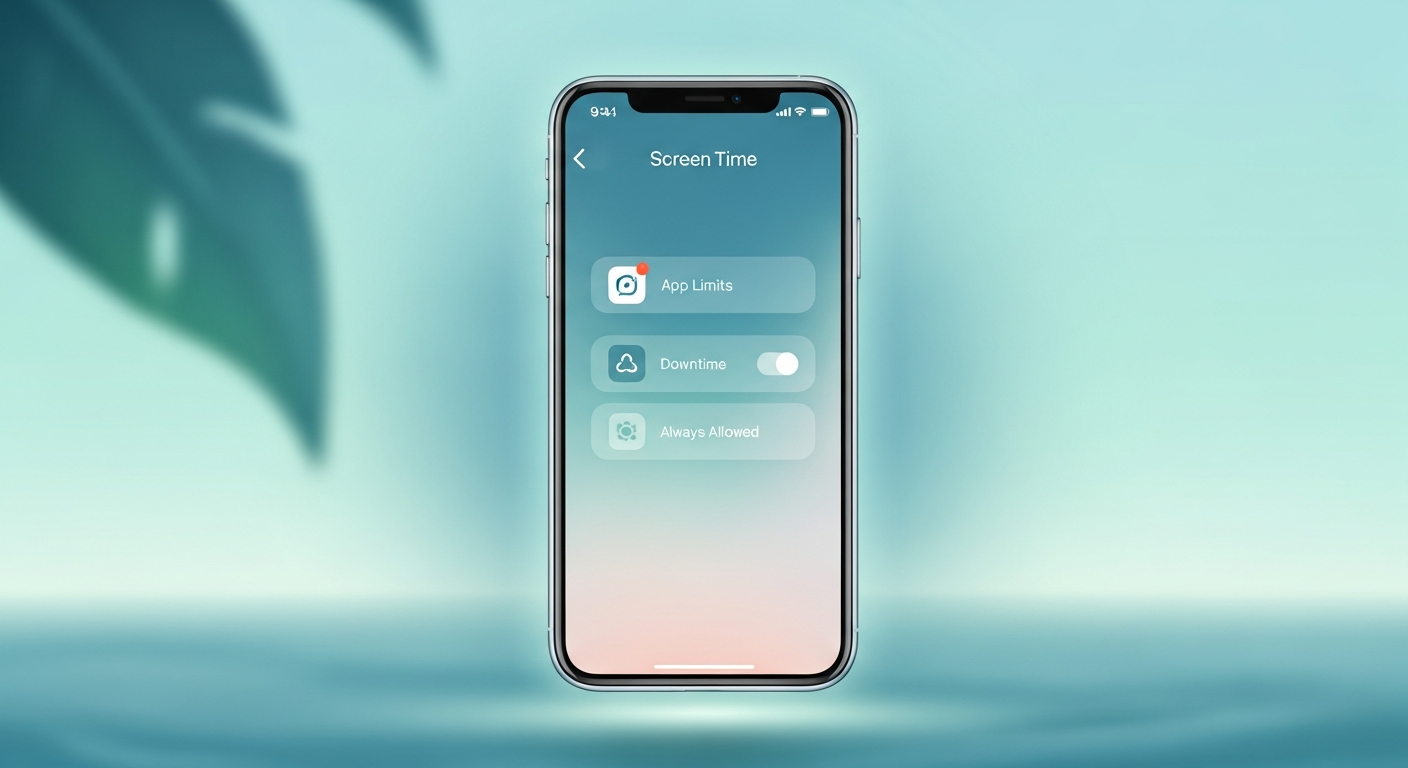
Mastering Screen Time on iPhone: Your Ultimate Guide to Digital Wellness in 2026
In an era where our smartphones have become extensions of our reach, the average person checks their device hundreds of times a day. We live in 2026, a time when the “attention economy” is more aggressive than ever, with apps designed specifically to exploit our dopamine pathways and keep us scrolling. However, the tide is turning. More users are seeking a return to presence, choosing digital minimalism over constant connectivity. Apple’s Screen Time suite is the most powerful tool at your disposal to reclaim your focus. This guide will walk you through how to use Screen Time settings on your iPhone not just as a set of restrictions, but as a framework for a healthier, more intentional life. By the end of this article, you will know how to transform your iPhone from a source of distraction into a curated tool for productivity and peace.
—
1. Setting Up Screen Time: The Foundation of Digital Balance
The first step toward digital wellness is awareness. You cannot change what you do not measure. Setting up Screen Time is a straightforward process, but it requires a commitment to honesty regarding your current habits.
To begin, navigate to **Settings > Screen Time**. Tap **Turn On Screen Time** and review the summary of what this feature provides, including weekly reports and the ability to set limits. You will be asked if this is your iPhone or your child’s; for this guide, we are focusing on personal wellness, so select **This is My iPhone**.
One of the most critical steps in the setup is the **Screen Time Passcode**. While you might think you don’t need a passcode for yourself, it acts as a “speed bump.” When you hit a limit, entering a four-digit code forces a moment of conscious reflection: *Do I really need another 15 minutes on Instagram, or am I just scrolling out of habit?* This micro-moment of friction is often enough to break the cycle of phone addiction. Once enabled, ensure you toggle on **Share Across Devices** if you use an iPad or Mac, as this provides a holistic view of your total digital footprint across the Apple ecosystem.
2. Downtime and App Limits: Taking Back Control of Your Clock
The core of “how to use screen time settings on iPhone” lies in these two features: Downtime and App Limits. These are your primary defensive lines against the “infinite scroll.”
#
Implementing Downtime
Downtime is essentially a “sleep mode” for your apps. When Downtime is active, only phone calls and the apps you’ve specifically whitelisted will be available. To set this up, go to **Screen Time > Downtime**. You can schedule it for the same time every day (e.g., 10:00 PM to 7:00 AM) or customize it for different days of the week. In 2026, sleep hygiene is recognized as a cornerstone of mental health; using Downtime to block stimulating apps an hour before bed is one of the most effective ways to improve your circadian rhythm.
#
Setting App Limits
If Downtime is a broad shield, App Limits are precision tools. Navigate to **App Limits > Add Limit**. You can choose entire categories (like Social Media or Games) or individual apps.
* **The “Social Media” Strategy:** Limit these to 30 or 60 minutes a day total.
* **The “News” Strategy:** Limit yourself to 20 minutes to avoid “doomscrolling.”
Once the limit is reached, the app icon dims and a glass hourglass icon appears. While you can technically bypass these limits, the goal is to develop the discipline to close the app once the notification appears.
3. Communication Limits and Content Restrictions: Creating a Focused Environment
Digital wellness isn’t just about how much time you spend on your phone; it’s about who has access to you and what kind of content you consume.
#
Communication Limits
Under **Screen Time > Communication Limits**, you can control who can contact you during allowed screen time and during Downtime. This is a game-changer for those suffering from “notification fatigue.” By setting your phone to allow “Contacts Only” during the day, you eliminate the distraction of unsaved numbers or marketing calls. During Downtime, you might restrict this further to “Specific Contacts” (like family or emergency services), ensuring that your rest is not interrupted by non-essential pings.
#
Content & Privacy Restrictions
This section is often overlooked but is vital for reducing “digital noise.” By navigating to **Content & Privacy Restrictions**, you can block explicit content in music and podcasts, or restrict web content to prevent yourself from visiting distracting sites in Safari. Furthermore, you can use this section to lock your account settings and passcode, preventing any impulsive changes to your wellness boundaries. This creates a “locked-in” environment that supports your long-term goals over your short-term impulses.
4. Analyzing Your Data: Understanding Your Digital Habits
Apple provides a wealth of data that can be used to diagnose the specific nature of your phone addiction. Tap **See All Activity** within the Screen Time menu to view your breakdown.
* **The “Pickups” Metric:** This is often more telling than total time spent. How many times a day do you reach for your phone? If you have 100+ pickups, you likely have a habit of “micro-checking”—looking at your phone every time there is a lull in conversation or work.
* **Notifications:** See which apps are sending the most pings. If an app sends 50 notifications a day but provides little value, it’s time to disable its notifications entirely.
* **First Used After Pickup:** This data point tells you which app pulls you in the moment you unlock your screen. If it’s always Mail or X (formerly Twitter), those are your “trigger” apps. Knowing this allows you to move those icons off your home screen to a secondary page or into a folder to reduce their gravitational pull.
5. Advanced Strategies for Beating Phone Addiction
To truly master your digital wellness in 2026, you must go beyond the basic settings and adopt a “Digital Minimalist” mindset. Screen Time works best when paired with environmental changes.
* **Always Allowed Apps:** Go to **Screen Time > Always Allowed**. Remove everything except the essentials: Phone, Messages (for emergencies), Maps, and perhaps a meditation or music app. By stripping this list down, your “Downtime” becomes a true sanctuary.
* **The Grayscale Trick:** While not strictly a Screen Time setting, it is found under **Accessibility > Display & Text Size > Color Filters**. Turning your screen to grayscale makes the vibrant, slot-machine colors of social media look dull and unappealing. This reduces the psychological reward of using your phone.
* **Focus Filters:** With modern iOS versions, you can link Screen Time settings to specific “Focus” modes. For example, when your “Work Focus” is on, you can set a Screen Time filter that hides distracting apps entirely or restricts specific web traffic. This creates a context-aware device that changes its behavior based on your goals.
6. Family Sharing: Cultivating Healthy Habits for the Whole Household
If you are a parent or live in a shared household, digital wellness is a team sport. Apple’s **Family Sharing** allows you to manage Screen Time for everyone in your “Family Group” directly from your own device.
By setting up Family Sharing, you can:
1. **Remotely Set Limits:** If you notice a child is spending too much time on YouTube, you can adjust their limit instantly from your phone.
2. **App Requests:** Use “Ask to Buy” and app restrictions so that you are the gatekeeper of what software enters your home.
3. **Lead by Example:** The most effective way to use Screen Time for a family is to be transparent about your own limits. Share your weekly reports with your partner or children. When they see you respecting your own “Downtime,” they are more likely to respect theirs. In 2026, teaching “Digital Literacy” and “Self-Regulation” is as important as any other life skill, and Screen Time is the primary textbook for this education.
—
FAQ: Frequently Asked Questions about Screen Time
**Q1: Will Screen Time drain my iPhone’s battery?**
A1: The impact is negligible. Screen Time runs as a background process integrated into the operating system. While it does track app usage, it is highly optimized and should not significantly affect your daily battery life.
**Q2: What if I forget my Screen Time passcode?**
A2: If you forget the code, you can reset it using your Apple ID. Go to **Settings > Screen Time > Change Screen Time Passcode**, then tap “Forgot Passcode?” and enter your iCloud credentials to verify your identity and set a new one.
**Q3: Can I bypass the App Limits if I really need to?**
A3: Yes, you can tap “Ignore Limit” for one minute, 15 minutes, or the rest of the day. However, the goal is to use this sparingly. If you find yourself constantly bypassing limits, it may be time to set a stricter passcode that a trusted friend or spouse knows instead of you.
**Q4: Does Screen Time track usage on third-party browsers?**
A4: Yes, Screen Time tracks time spent in any app, including Chrome, Firefox, or Safari. It can even track specific websites visited within these browsers if you have “Share Across Devices” and “Web Content” tracking enabled.
**Q5: Can I set different limits for different days of the week?**
A5: Absolutely. When setting a “Downtime” or “App Limit,” look for the **Customize Days** option. This allows you to have stricter limits during the work week and slightly more flexibility on the weekends.
—
Conclusion: Embracing a Mindful Digital Future
Learning how to use Screen Time settings on iPhone is more than just a technical tutorial; it is an act of self-care. In the fast-paced world of 2026, our attention is our most valuable resource. When we allow apps to dictate our time, we lose the ability to think deeply, connect authentically with others, and rest effectively.
By implementing Downtime to protect your sleep, setting App Limits to curb mindless scrolling, and using data to understand your triggers, you are taking back the steering wheel of your life. Remember that these tools are not meant to be a digital prison, but rather a set of guardrails that keep you on the path toward your best self. Start small—perhaps by just setting a 30-minute limit on your most-used social media app—and build from there. Digital wellness is a journey, not a destination, and with your iPhone’s Screen Time settings, you have the ultimate compass to guide you home.